
Download Records Master – Secure Document Manager for PDFs
Overview
Records Master is positioned as a secure file manager that consolidates all of your essential documents—bank statements, investment records, receipts, and other PDFs—into a single, searchable vault. The premise is attractive: instead of scattering files across hard‑drive folders or risking exposure on cloud services, you store everything locally behind a password‑protected interface. The application promises a suite of productivity tools such as custom notes, automated report generation, and even an integrated web browser that can pull statements directly from banking portals.
While the idea behind Records Master is solid, the execution raises several concerns. The user interface feels dated and unintuitive, making the onboarding process feel like a steep learning curve. Even basic actions—like adding a new document or creating a smart folder—require navigating through cryptic dialogs and obscure “hint” messages.
For users who expect a plug‑and‑play experience, the program can feel more like a niche utility that demands patience and a willingness to experiment. That said, once you master its quirks, the security‑first approach and the ability to generate month‑by‑month financial reports are genuine strengths. If you’re comfortable with a bit of tinkering and value on‑premise data control, Records Master could become a central hub for your financial paperwork.
Key Features & Functionalities
- Secure PDF Repository: All files are stored locally with optional password encryption, eliminating reliance on third‑party cloud services.
- Custom Attributes & Notes: Attach free‑form notes, tags, and numeric attributes to each document for easy categorisation.
- Smart Folders & Automated Reports: Define smart folders based on attribute filters and generate monthly reports or graphs automatically.
- Integrated Web Browser: Directly log into supported banking websites to download statements without leaving the application.
- Batch Import & Printing: Drag‑and‑drop multiple PDFs at once and produce high‑quality printouts from within the app.
- Preferences Tab for Browser Settings: Fine‑tune page‑load delays, user agents, and other browser parameters from a dedicated tab.
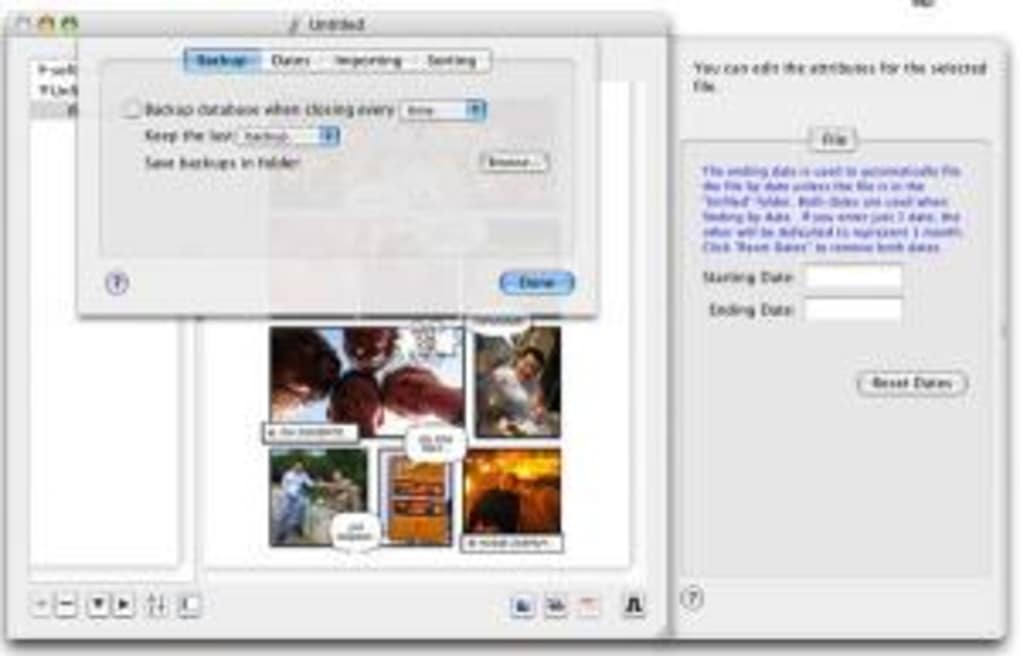
- Export & Backup Options: Export selected folders as encrypted archives for off‑site backup.
How These Features Translate Into Daily Use
The secure repository ensures that even if your laptop is stolen, the PDFs remain unreadable without the correct password. Custom attributes let you tag a receipt with “tax‑deductible” or a bank statement with “quarter‑end,” enabling rapid filtering. Smart folders act like dynamic playlists; you can create a folder that automatically shows all documents marked “tax‑deductible” for the current month, and then click “Generate Report” to receive a PDF summary with charts.
The integrated browser is a standout for users who routinely download monthly statements; after logging in, a single click imports the PDF directly into the appropriate smart folder. Batch import saves time during tax season, and the print quality improvements mean you can produce professional‑looking hard copies without extra software. Together, these tools aim to replace a cluttered desktop and a collection of disparate utilities with a single, purpose‑built environment.
Installation, Setup & Everyday Usage
Step‑by‑Step Installation
- Visit the official Records Master website and click the “Download for Windows” button. The installer is a small
.exefile (~45 MB). - Run the installer and follow the wizard: accept the license agreement, choose an installation folder (default is
C:\Program Files\RecordsMaster), and decide whether to create a desktop shortcut. - After installation, launch the program. On first start you’ll be prompted to set a master password—this encrypts the entire database.
- Optionally, import an existing backup archive if you’re migrating from another system.
Initial Configuration
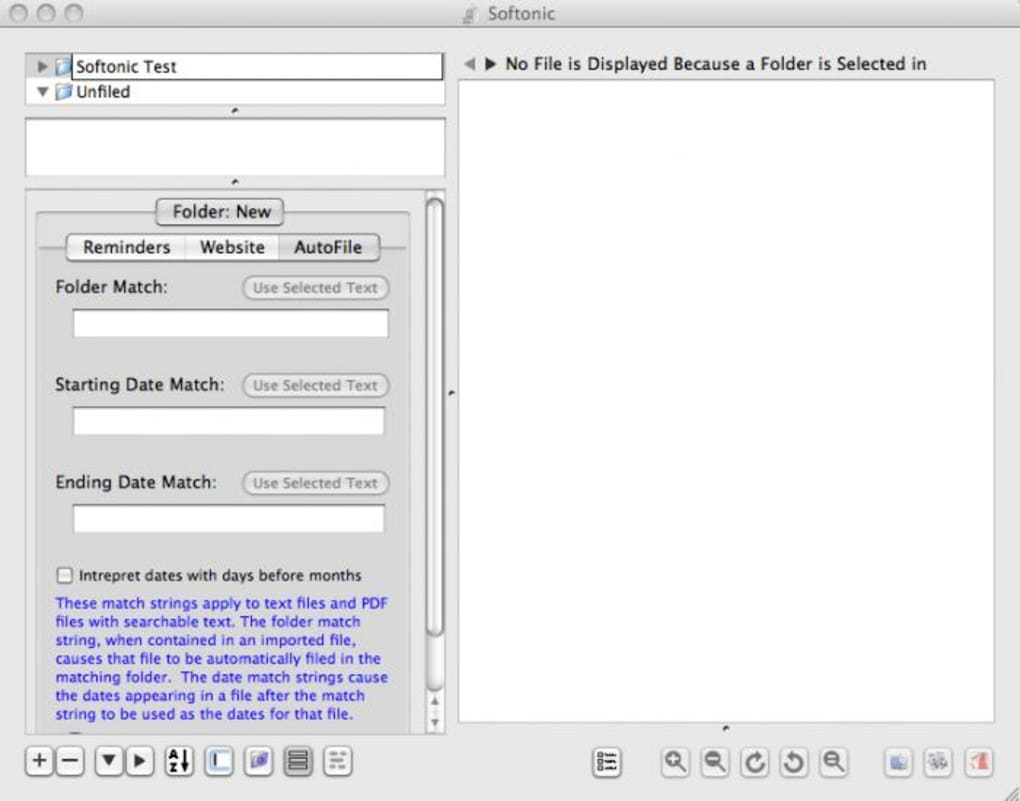
Once inside, open the Preferences window (gear icon). Under the Browser tab, configure the auto‑login URLs for your bank(s) and set the page‑load delay to a comfortable value (e.g., 2 seconds). Enable “Remember credentials” only if you trust the local machine’s security. Next, create a Smart Folder by clicking the “New Smart Folder” button, choosing a name such as “2024 Tax Docs,” and adding attribute filters like Category = Tax and Year = 2024. This folder will automatically populate with any document that matches those criteria.
Typical Workflow
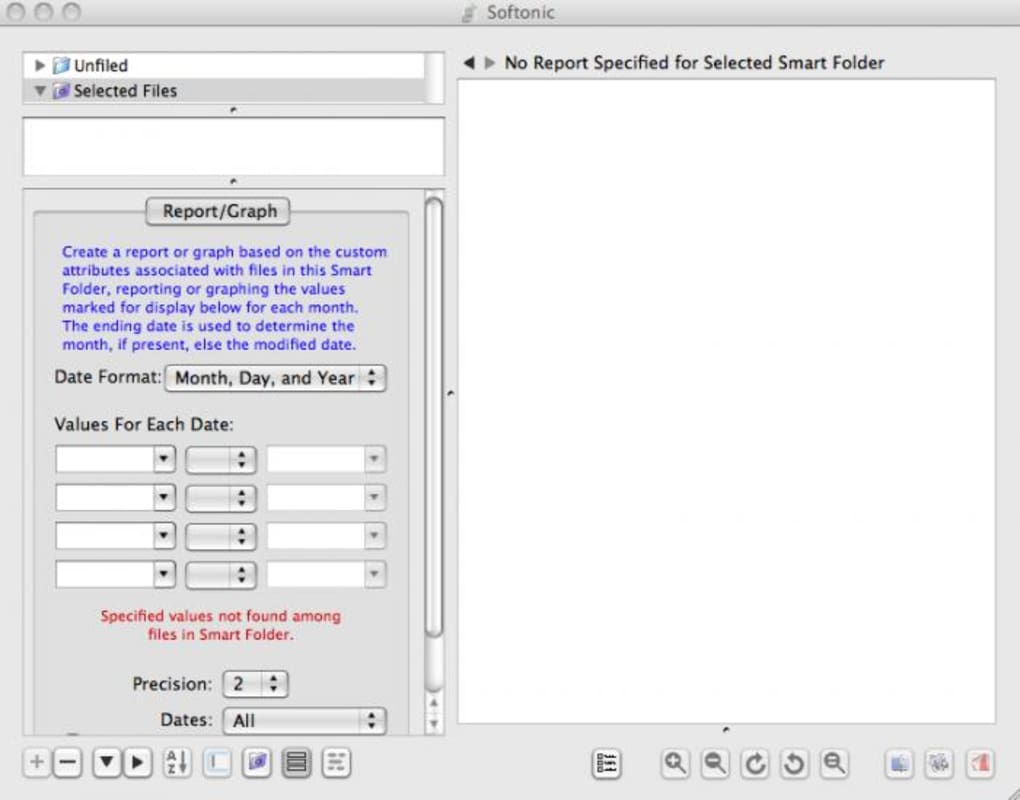
Adding a new PDF is straightforward once you know where to look: click the “Import” button, browse to the file, and then the “Attributes” dialog appears. Here you can type notes, select pre‑defined tags, or add numeric values (e.g., amount paid). After saving, the document appears in the main view and, if it meets any smart‑folder criteria, instantly shows up there as well. To generate a monthly expense report, open the relevant smart folder, click “Create Report,” choose “Bar Graph” or “Table,” and hit “Export.” The generated PDF can be saved, printed, or emailed directly from the app. For users who need to retrieve a lost receipt, the search bar at the top accepts both file names and attribute keywords, returning results in milliseconds thanks to the built‑in index.
Compatibility, Pros & Cons
Records Master is currently built for Windows 10 and later (64‑bit). The installer will refuse to run on macOS, Linux, Android, or iOS, so users of those platforms must look for alternative PDF vault solutions. The program does not require an internet connection for core functions, but the integrated browser obviously needs network access for statement downloads.
Pros
- Strong local encryption protects sensitive financial documents.
- Custom attributes and smart folders provide powerful, dynamic organisation.
- Integrated web browser eliminates the need for a separate download step.
- Batch import and high‑quality printing streamline tax‑season workflows.
- Exportable encrypted backups simplify disaster recovery.
Cons
- Windows‑only limits accessibility for macOS and mobile users.
- Cluttered, unintuitive GUI makes basic tasks feel cumbersome.
- Lack of guided tutorials or onboarding wizard forces users to learn by trial‑and‑error.
- Smart‑folder “hint” messages are cryptic and can overwhelm newcomers.
- Price point is higher than many cloud‑based alternatives that offer similar storage.
Overall, Records Master delivers a solid security‑first approach, but the steep learning curve and Windows‑only restriction keep its rating at a modest three stars.
Frequently Asked Questions
Is Records Master free or does it require a purchase?
Records Master is a paid application. A single‑user license costs $49.99 USD and includes one year of updates. There is no free tier, but a 14‑day trial is available for evaluation.
Can I sync my documents across multiple devices?
The software stores files locally, so native sync is not built‑in. However, you can place the database folder inside a cloud‑sync service like OneDrive or Dropbox and manually keep it up‑to‑date, keeping in mind that the encryption key is stored locally.
Does Records Master support OCR for scanned PDFs?
No native OCR engine is included. Users must run an external OCR tool before importing the PDF if searchable text is required.
How secure is the password protection?
Records Master uses AES‑256 encryption for the database file. The master password is never stored in plain text, and the key derivation function includes a high‑iteration PBKDF2 hash, making brute‑force attacks impractical.
Can I import non‑PDF files such as images or Word documents?
The current version only accepts PDF files. For other formats you must convert them to PDF before importing, which can be done with free online converters or desktop tools.
Conclusion & Call to Action
Records Master fills an important niche for users who demand a self‑contained, encrypted repository for financial PDFs. Its custom attribute system and automated reporting capabilities are powerful enough to replace several separate utilities, and the built‑in browser streamlines statement downloads. However, the steep learning curve, Windows‑only limitation, and lack of modern onboarding resources may deter less‑technical users. If you are comfortable navigating a slightly dated interface and you value complete control over your data, the investment can be worthwhile. For those who prefer a cloud‑first, cross‑platform experience, alternatives such as Google Drive with third‑party encryption or dedicated receipt‑scan apps might be a better fit.
Ready to secure your important records? Download Records Master now and start organizing your financial life with confidence.







